

Launchpad
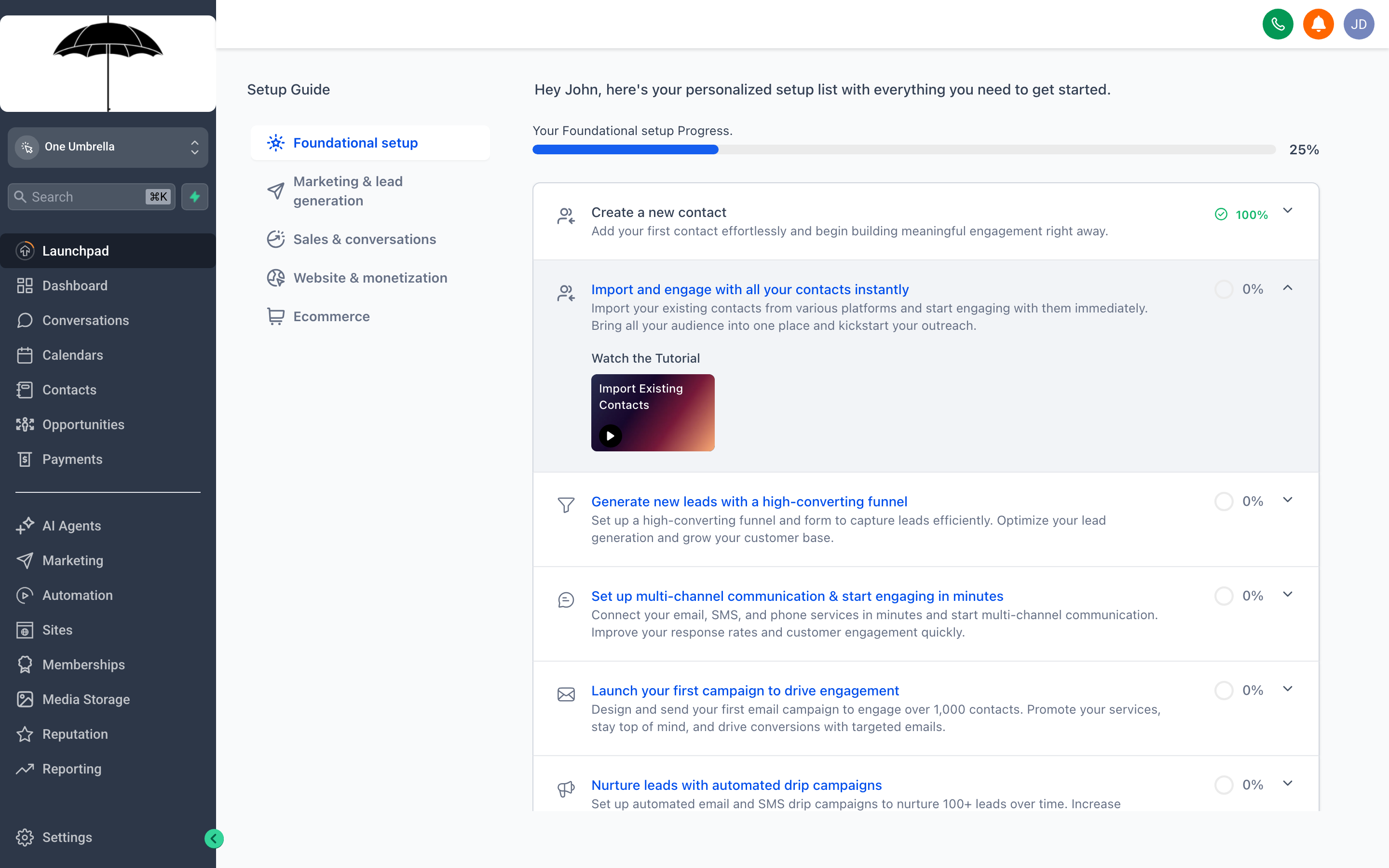
Launchpad puts every first-day setup task on one screen — no hunting through menus, no guessing what to do next.
When you first log into your CRM, Launchpad is the recommended place to start. It collects all the foundational configuration steps — the ones that unlock the features you’ll actually use every day — into a single, trackable checklist. You can come back to it any time; it remembers what you’ve already finished and shows you what still needs attention.
Think of Launchpad as your setup co-pilot. The platform works without completing every item, but the more of the checklist you knock out, the more the CRM can do for you automatically.
Finding the Launchpad
Section titled “Finding the Launchpad”If Launchpad didn’t open automatically when you first logged in, look for Launchpad in the left-hand navigation menu. It’s typically near the top of the list, close to the home icon. Click it any time to return.
What the setup checklist covers
Section titled “What the setup checklist covers”Launchpad guides you through five core areas. You don’t have to complete them in order, but this sequence tends to go the smoothest.
Connect a phone number
Section titled “Connect a phone number”Your CRM can send and receive SMS messages, make calls, and handle voicemail — but only once a phone number is attached to your account. Click the Connect Phone Number card to provision a local or toll-free number directly inside the platform, or to port a number you already own.
Why this matters: without a phone number, any automation that involves texting a lead will simply not send.
Connect email and set up a sending domain
Section titled “Connect email and set up a sending domain”Click Connect Email to link a sending address for outbound messages. For best deliverability — especially if you plan to send campaigns — you should also complete the Sending Domain step, which walks you through adding the required DNS records to your domain so your emails don’t land in spam.
Import or add contacts
Section titled “Import or add contacts”Your CRM is only as useful as the contacts inside it. The Import Contacts card lets you upload a CSV file from another tool, or you can start manually with Add Contact if you’re beginning from scratch.
When importing a CSV:
- Download the platform’s import template so your columns are mapped correctly.
- Paste your data into the template (name, email, phone, any custom fields you need).
- Upload the file and confirm the field mapping before finalizing.
- The platform will flag any rows with problems so you can fix them before they’re skipped.
Set up a calendar
Section titled “Set up a calendar”If you book appointments, the Calendar step connects your availability so leads can self-schedule, automations can book calls, and your schedule syncs with Google Calendar or Outlook. Click Set Up Calendar to choose a calendar type, set your working hours, add buffer time between appointments, and configure confirmation messages.
Even if you don’t plan to use appointment booking right away, completing this step takes about two minutes and prevents errors if a client or automation tries to book with you later.
Customize your branding
Section titled “Customize your branding”The Branding card lets you upload your logo, set your business name, and configure the colors used across client-facing touchpoints like appointment confirmation emails and forms. This step is quick and makes a noticeable difference in how professional your outreach looks.
Tracking your progress
Section titled “Tracking your progress”Each card on the Launchpad shows a completion status — either checked off or still pending. You can see at a glance how much of the setup remains without clicking into anything.
Where to go once setup is complete
Section titled “Where to go once setup is complete”Once the core Launchpad items are done, your CRM is ready for real work. Here’s where most people head next:
- Contacts — start organizing, tagging, and building your pipeline
- Conversations — your unified inbox for SMS, email, and calls
- Opportunities — set up your sales pipeline stages
- Automations — build your first follow-up sequence
You don’t need to revisit Launchpad regularly after the initial setup, but it’s always there if you add a new integration or want to audit your configuration.