

Opportunities
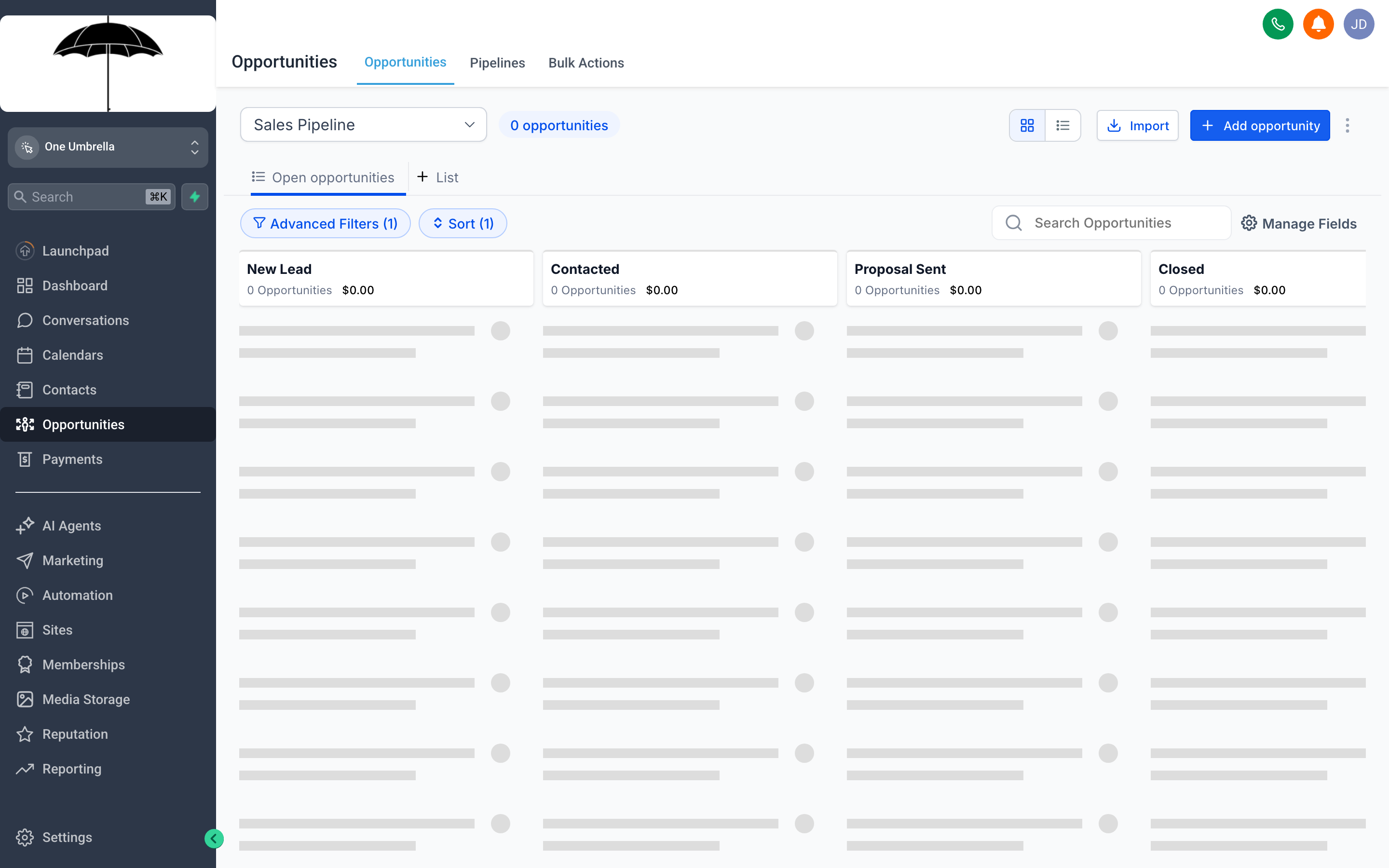
The pipeline board gives you a visual snapshot of every active deal — each column is a stage, each card is a deal, and the total value at the top of each column tells you where your revenue is sitting.
Opportunities is how you track sales from first contact to closed deal. Each deal lives on a card showing the contact’s name, the estimated value, and how long it has been sitting in its current stage. The Kanban layout makes it easy to see at a glance what’s moving forward, what’s stalled, and where your team needs to focus. When a deal progresses, you drag it to the next stage — and your pipeline updates in real time.
Reading the pipeline board
Section titled “Reading the pipeline board”The board is organized as columns from left to right, each column representing a stage in your sales process. A typical pipeline might look like:
New Lead → Contacted → Proposal Sent → Negotiation → Closed Won
Each deal card shows:
- The contact name (or company) the deal is associated with
- The deal title or label you gave it when adding the opportunity
- The estimated value in dollars (or your currency)
- A visual indicator of how long the deal has been in its current stage — a useful signal for spotting deals that need attention
At the top of each column you’ll see the total value of all deals in that stage. Watch these numbers over time: if value consistently piles up in one stage, that’s usually where your process has a gap.
Moving a deal between stages
Section titled “Moving a deal between stages”When a deal progresses, drag its card from its current column and drop it into the next stage column. The pipeline updates immediately and the deal’s time-in-stage counter resets.
If the board is dense with cards or you’re working on a smaller screen, you can also move a deal by opening the card and changing the Stage field in the dropdown inside the detail view — same result, no drag required.
Switching to list view
Section titled “Switching to list view”Prefer a table over a Kanban board? Click the List view icon near the top right of the Opportunities screen. The list view shows every deal as a row with columns for contact, stage, value, assigned user, and date created. You can sort by any column and filter by stage, assigned user, date range, or custom criteria.
List view is especially useful when:
- You have a very large number of open deals and the board feels cluttered
- You want to sort by value to focus on your highest-priority deals
- You need to export or audit your pipeline data
Filtering and sorting
Section titled “Filtering and sorting”Use the Filter controls above the board or list to narrow your view. Common filters include:
- Assigned to — see only deals assigned to a specific team member
- Stage — isolate one stage at a time
- Date range — focus on deals created or modified within a window
- Pipeline — switch between multiple pipelines if your account has more than one
In list view, click any column header to sort ascending or descending by that field.
Adding a new opportunity
Section titled “Adding a new opportunity”You can add a deal from the pipeline board, the list view, or directly from a contact record.
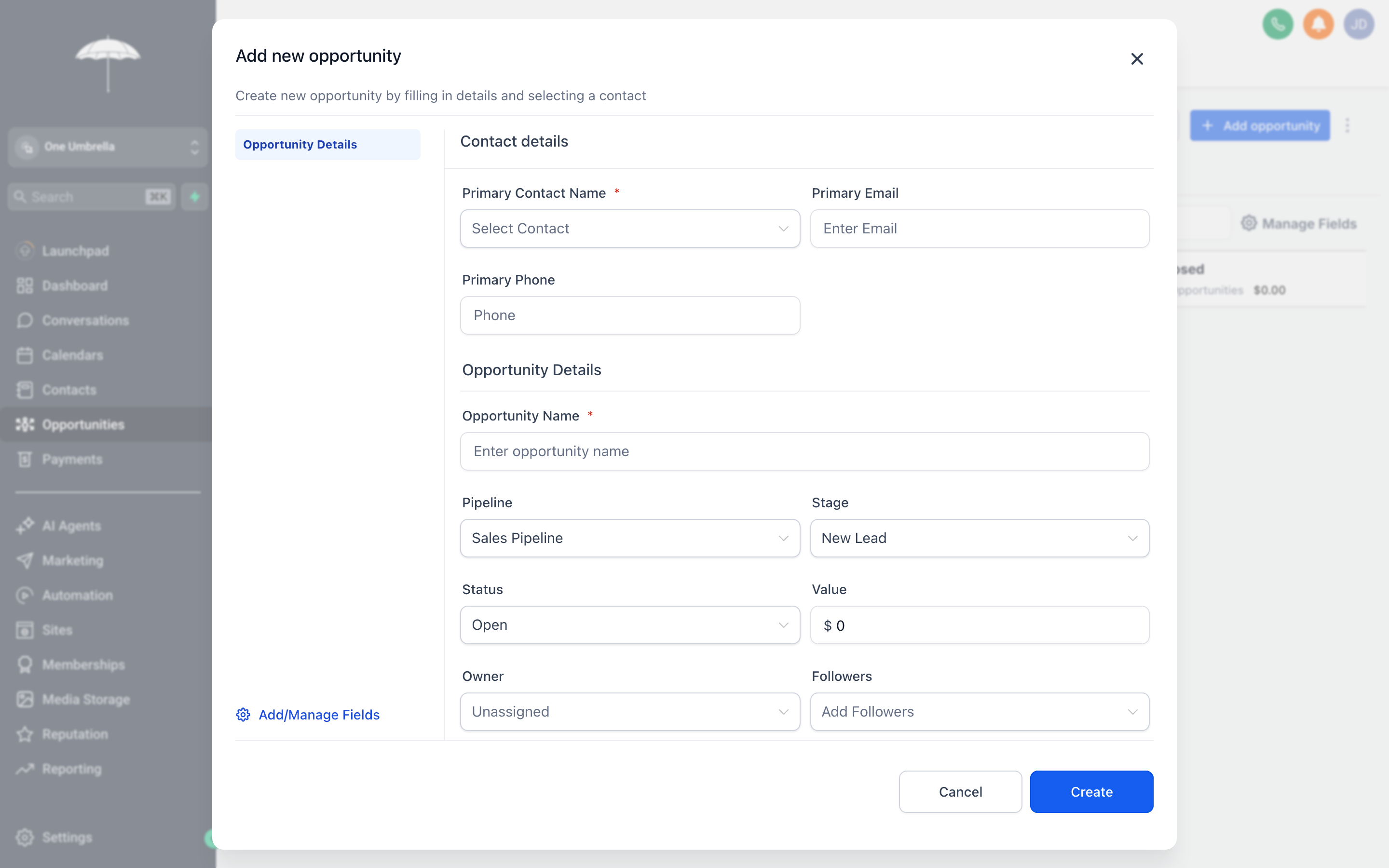
The New Opportunity form — link it to a contact, name the deal clearly, set a value, and place it in the right pipeline stage before saving.
- Click + Add Opportunity — typically a button in the upper-right area of the screen, or a + icon at the top of the first pipeline column.
- In the Contact field, search for the existing contact this deal is associated with. If they don’t have a contact record yet, you can create one from this screen. Linking to an existing contact keeps the deal connected to all of their conversation history and activity.
- Enter a Opportunity Name or deal title that clearly describes what’s being sold — for example, “Website Redesign - Smith Law” is more useful than just “Website.”
- Enter the Monetary Value — your best estimate of what the deal is worth. Even a rough number is better than leaving it blank, since this powers your pipeline value totals.
- Select the Pipeline and Stage to place the deal in. When in doubt, start deals in your earliest active stage rather than a “new lead” bucket that’s too early to track.
- Assign the deal to a Team Member if your account uses assignments.
- Add any Notes relevant to the deal’s starting context — where the lead came from, what they asked about, any important constraints.
- Click Save. The deal card appears in the column you selected immediately.
Managing pipelines and stages
Section titled “Managing pipelines and stages”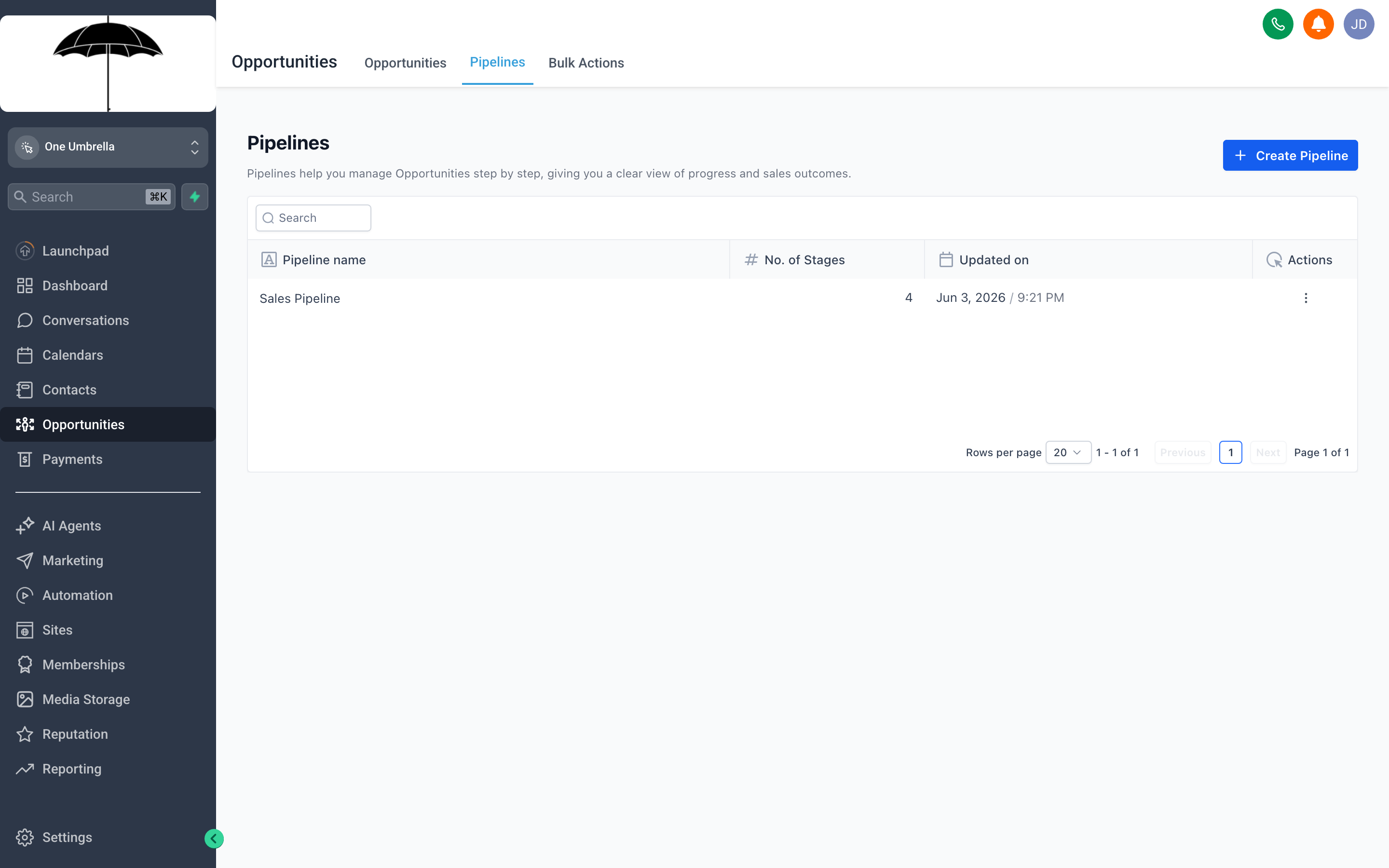
The pipeline settings screen is where you build and refine the stages that structure your sales process — keep stages action-oriented so your team always knows what the next step is.
Pipelines and their stages are configured by your account administrator. To access pipeline settings, look for a Settings or Manage Pipelines link on the Opportunities screen (exact placement may vary). From there you can:
- Create a new pipeline — useful when you have genuinely distinct sales processes, such as a services pipeline and a product pipeline that follow different steps and timeframes
- Rename stages — stage names should reflect a clear action or milestone: “Proposal Sent” is better than “Proposal” because your team knows exactly what has happened
- Reorder stages — drag stages into the sequence that reflects your actual process
- Add a stage — insert a new milestone between existing ones as your process evolves
- Delete a stage — only delete a stage after moving or closing all deals currently sitting in it
Fine-tuning a pipeline’s stages
Section titled “Fine-tuning a pipeline’s stages”Open a pipeline and select its Stages tab to reach the deeper settings — display colors, win probability, report visibility, and Smart Tags.
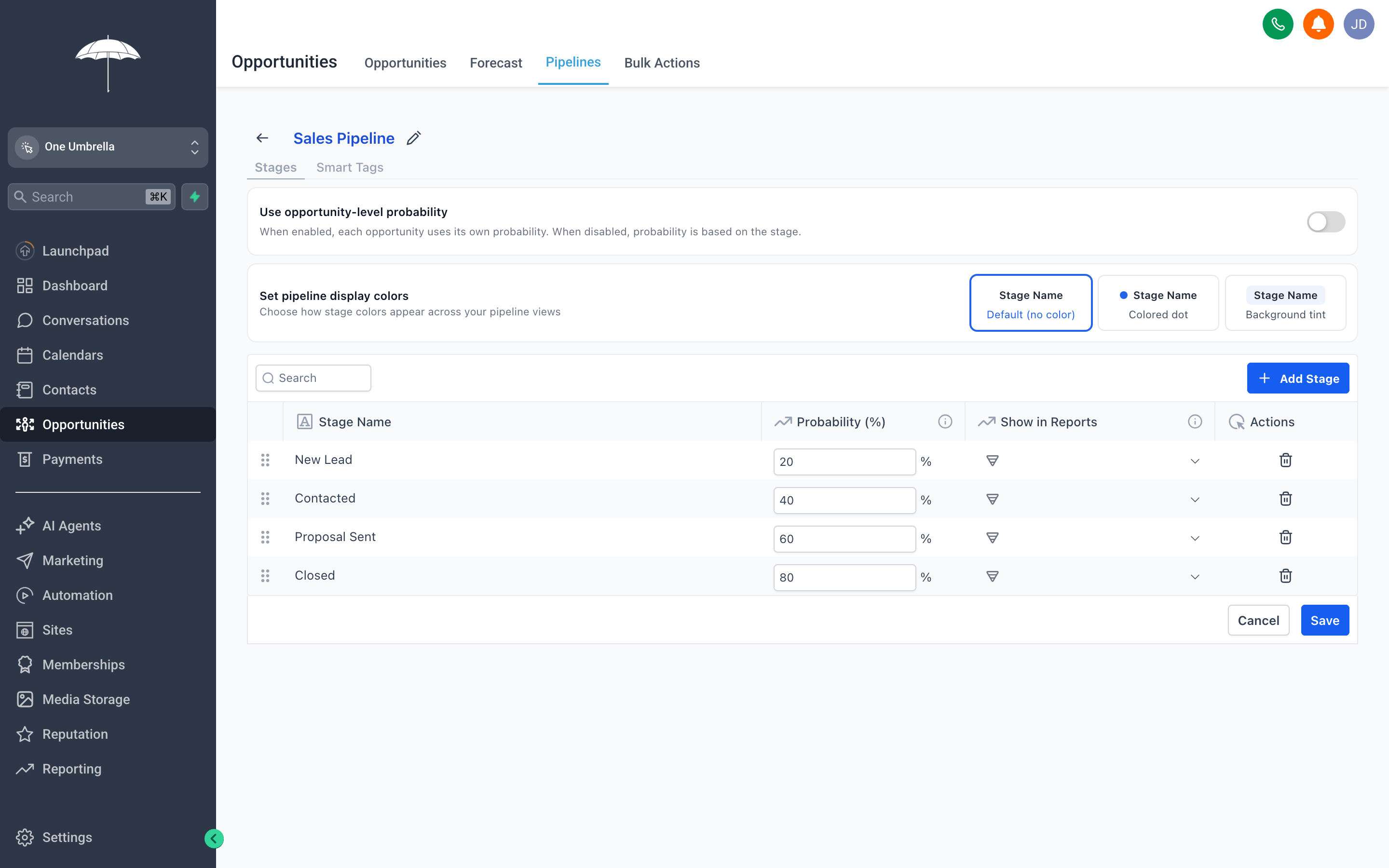
The Stages settings for a pipeline: choose how stages are color-coded, set each stage’s win probability, pick which stages appear in reports, and manage Smart Tags.
Color-coding your stages
Section titled “Color-coding your stages”Use Set pipeline display colors to choose how stages are visually distinguished across your pipeline views. There are three options:
- Default (no color) — stage names appear as plain text. Cleanest, least visual noise.
- Colored dot — a small colored dot sits beside each stage name. A subtle way to tell stages apart at a glance without overwhelming the board.
- Background tint — each stage column is tinted with its color. The most visual option — great for teams who scan the board quickly and want stages to “pop.”
Pick the level of color that helps your team move fast. Colored dot is a comfortable middle ground for most teams.
Stage probability vs. opportunity-level probability
Section titled “Stage probability vs. opportunity-level probability”Each stage can carry a Probability (%) — your typical likelihood of winning a deal once it reaches that stage (for example, New Lead 20% → Contacted 40% → Proposal Sent 60% → Closed 80%). These percentages feed your forecasting math.
By default, every deal in a stage inherits that stage’s probability. Flip on Use opportunity-level probability and each individual deal can instead carry its own win probability — useful when some deals in the same stage are clearly stronger than others and you want a more precise forecast. Leave it off for simplicity; turn it on when your team wants deal-by-deal control.
Choosing which stages show in reports
Section titled “Choosing which stages show in reports”The Show in Reports control on each stage decides whether that stage is included in pipeline reporting and forecasting. Turn it off for housekeeping stages you don’t want skewing your numbers — an “On Hold” or “Nurture” parking stage, say — so your conversion metrics reflect only the stages that represent real forward motion.
Smart Tags
Section titled “Smart Tags”The Smart Tags tab lets you attach tags to a pipeline that apply automatically as deals move through it — handy for triggering automations or segmenting contacts based on where their deal sits. Set them once and they do the tagging for you.
Opportunity forecasting
Section titled “Opportunity forecasting”When Opportunity Forecasting is enabled, your pipeline becomes a revenue-prediction tool, not just a tracker. Forecasting combines each deal’s value with the win probability of its stage (or the deal’s own probability, if you enabled opportunity-level probability) to project weighted expected revenue — a realistic estimate of what your pipeline is actually likely to close, rather than the raw total of every open deal.
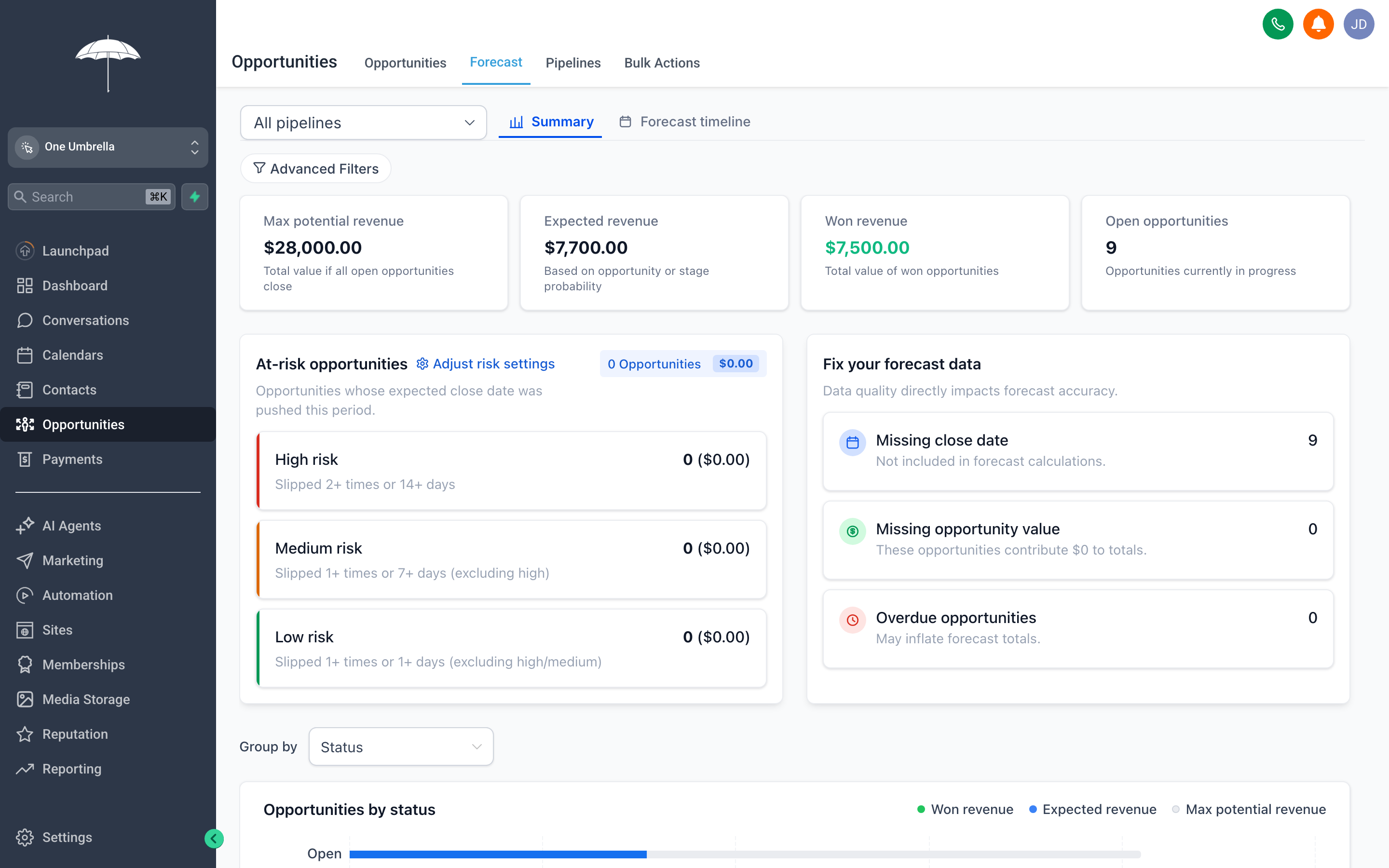
The Forecast view: max potential vs. weighted expected revenue, won revenue, open deals, and an at-risk breakdown — with data-quality nudges (missing close dates, missing values) that keep the projection honest.
For accurate forecasts:
- Keep deal values current — the forecast is only as good as the numbers behind it.
- Set sensible stage probabilities that reflect your real historical close rates.
- Move deals promptly so each one sits in the stage that matches reality.
- Turn off Show in Reports for any parking/holding stages so they don’t distort the projection.
Best practices for a healthy pipeline
Section titled “Best practices for a healthy pipeline”One pipeline per distinct process. Don’t put every deal type into a single pipeline if they follow meaningfully different paths. A consulting pipeline and a product-sales pipeline will have different stages, different timelines, and different follow-up patterns. Keeping them separate makes reporting accurate and your board readable.
Name stages after actions, not outcomes. “Contract Sent” tells your team something happened. “In Progress” tells them nothing. Rename any vague stages so that moving a card to a stage means one clear thing happened.
Update deals regularly. A pipeline only works if the data in it is current. Build the habit — or a team norm — of updating deal stages at least weekly. Stale pipelines breed missed follow-ups and incorrect forecasting.
Add value estimates to every deal. Even a rough number is better than zero. Pipeline value totals are one of the most useful signals in your business; they don’t work if deals have no value attached.
Archive or close lost deals explicitly. Deals that fade without being moved to a Closed Lost stage create clutter and inflate your pipeline value. Make it a habit to formally close or archive deals that are no longer active — that discipline keeps your metrics honest.